
User guide
How to use MSRX Meeting
Everything from starting your first meeting to exporting the summary, step by step, with a picture of each screen.
Before you start
You need a recent browser — Chrome, Edge, Safari or Firefox, on a computer or a phone — and nothing else. There is no app to install and no account to create.
The first time you join, your browser asks for permission to use your camera and microphone. Choose Allow. If you said no by mistake, click the camera icon in the address bar to change it.
1. Start a meeting
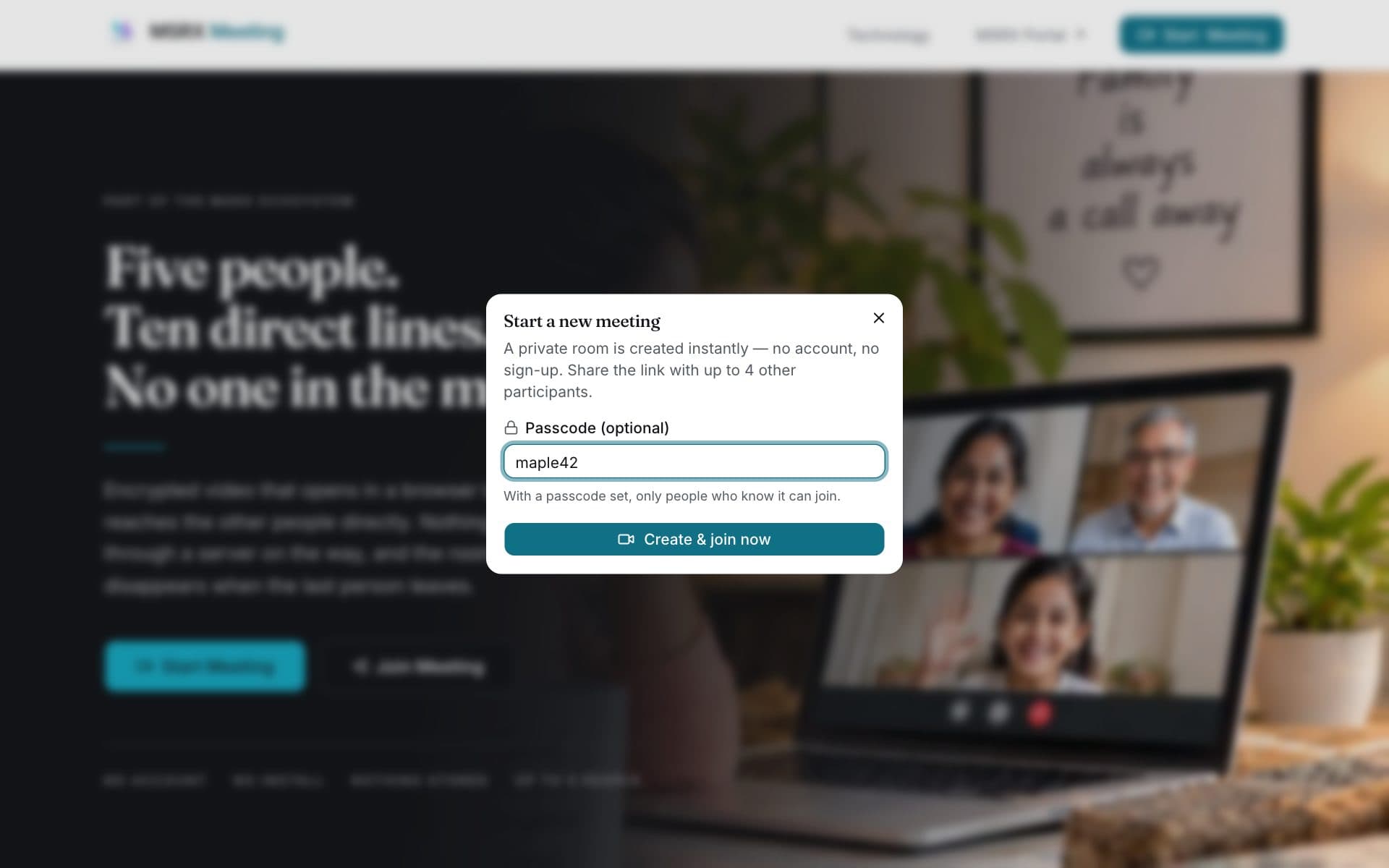
Open meeting.msrx.co.in and click Start Meeting, at the top of the page or in the middle of it.
A small window opens. You can set a passcode if the conversation is private; anyone joining will then need it. Leave it empty for an open room. Click Create & join now.

2. Check your camera and enter your name
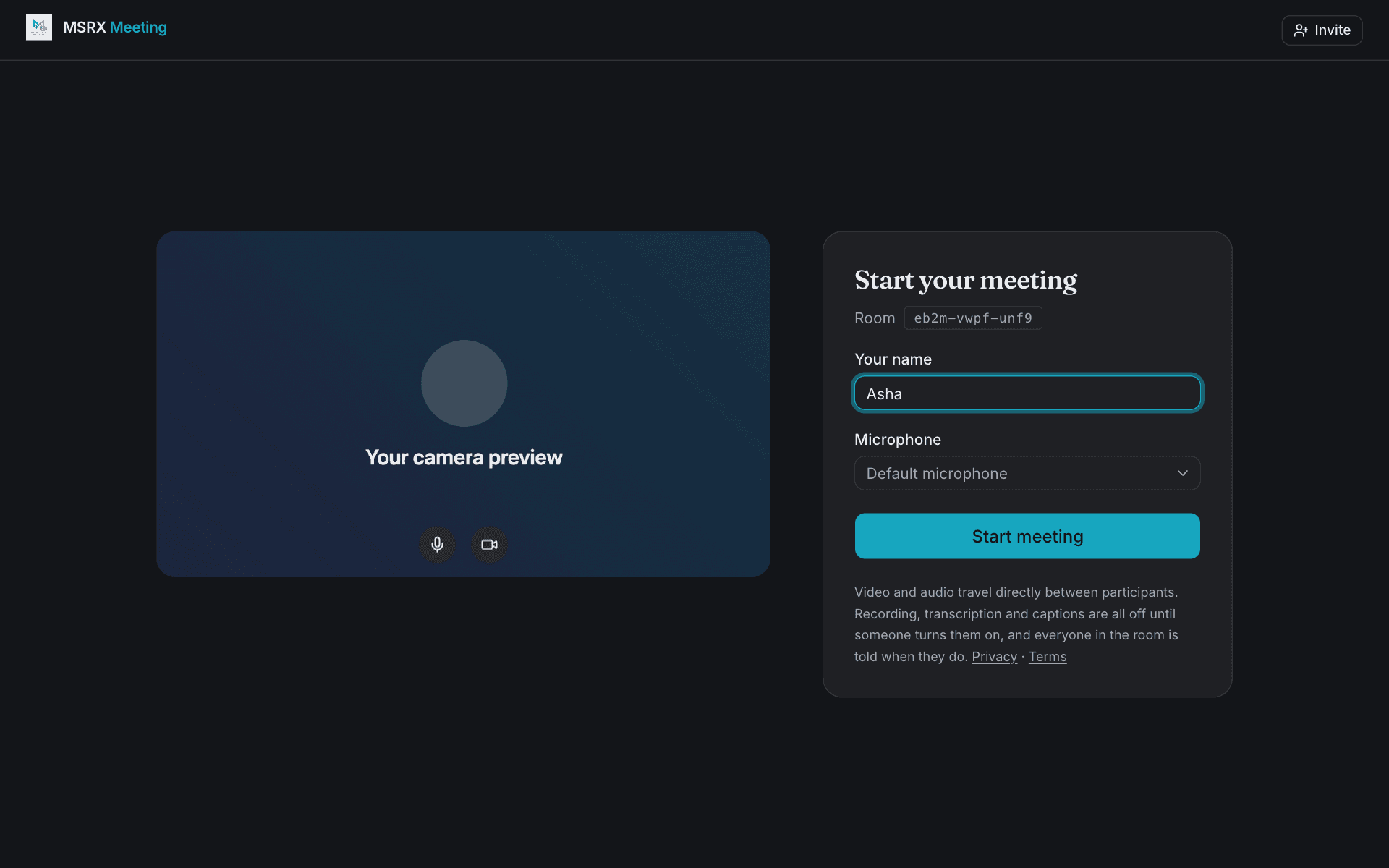
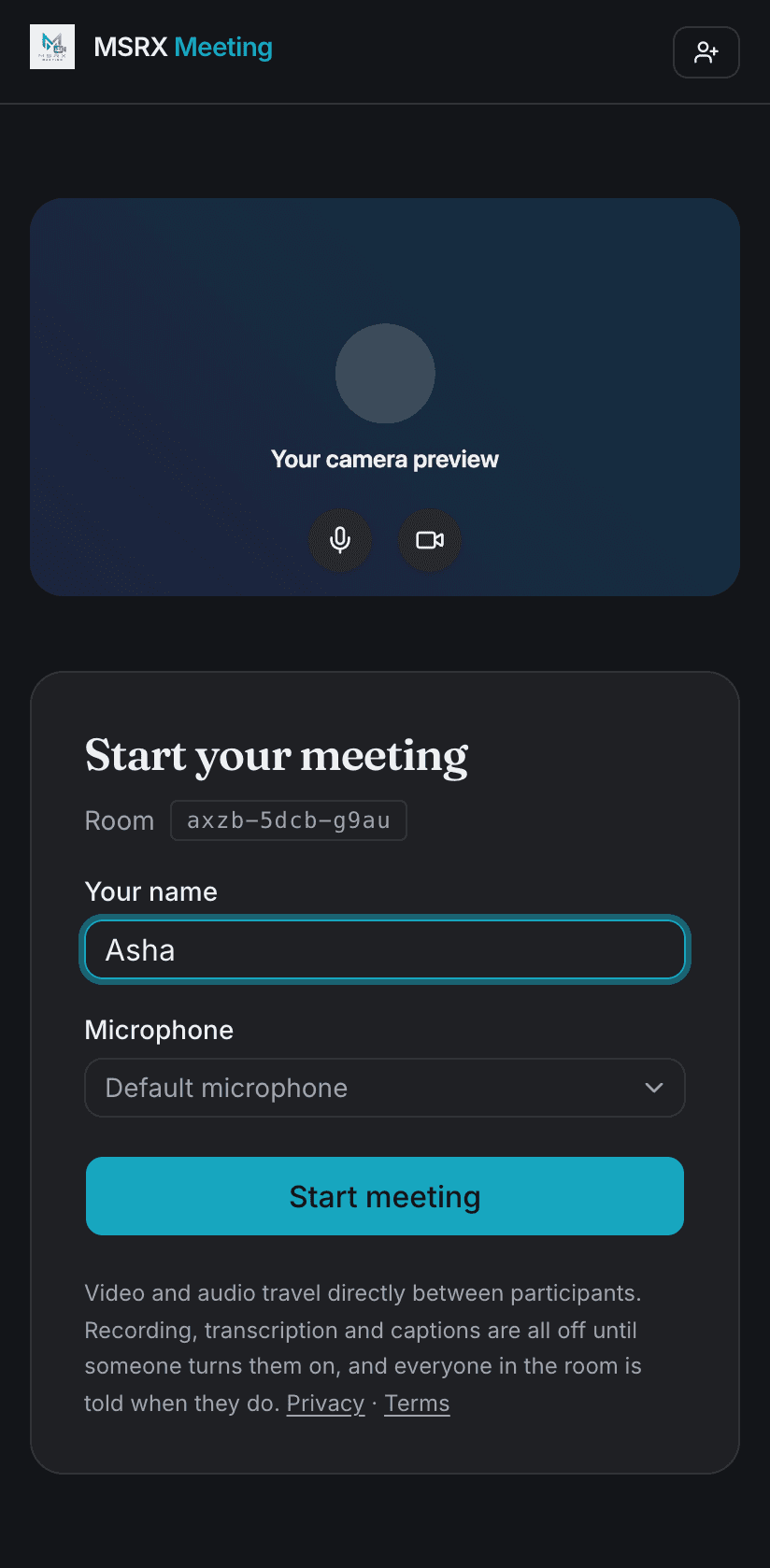
Before you go in you see yourself as the others will. Type the name you want people to see, pick a different microphone or camera if you have more than one, and use the two round buttons under the preview to go in muted or with your camera off.
Click Start meeting (or Join meeting, if you are a guest). You are now live.
3. Invite people
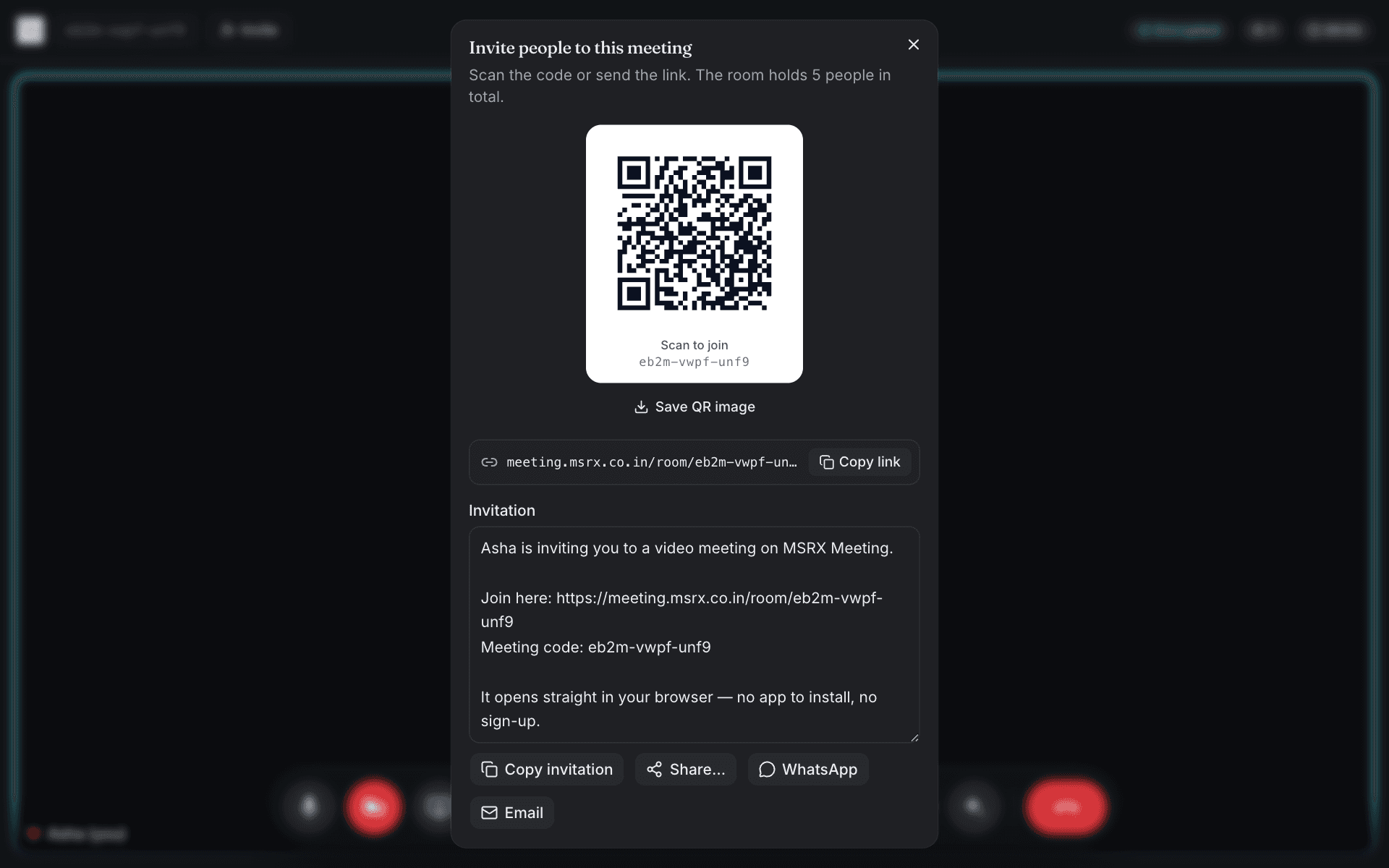
Click Invite at the top left. You can copy the link, copy a ready-written invitation, send it straight to WhatsApp or email, or let someone scan the QR code with their phone camera. The room holds 5 people in total.
Anyone who has the link can walk in, so send it privately. If you set a passcode, send that separately — guests are asked for it as they join.
4. Join someone else's meeting
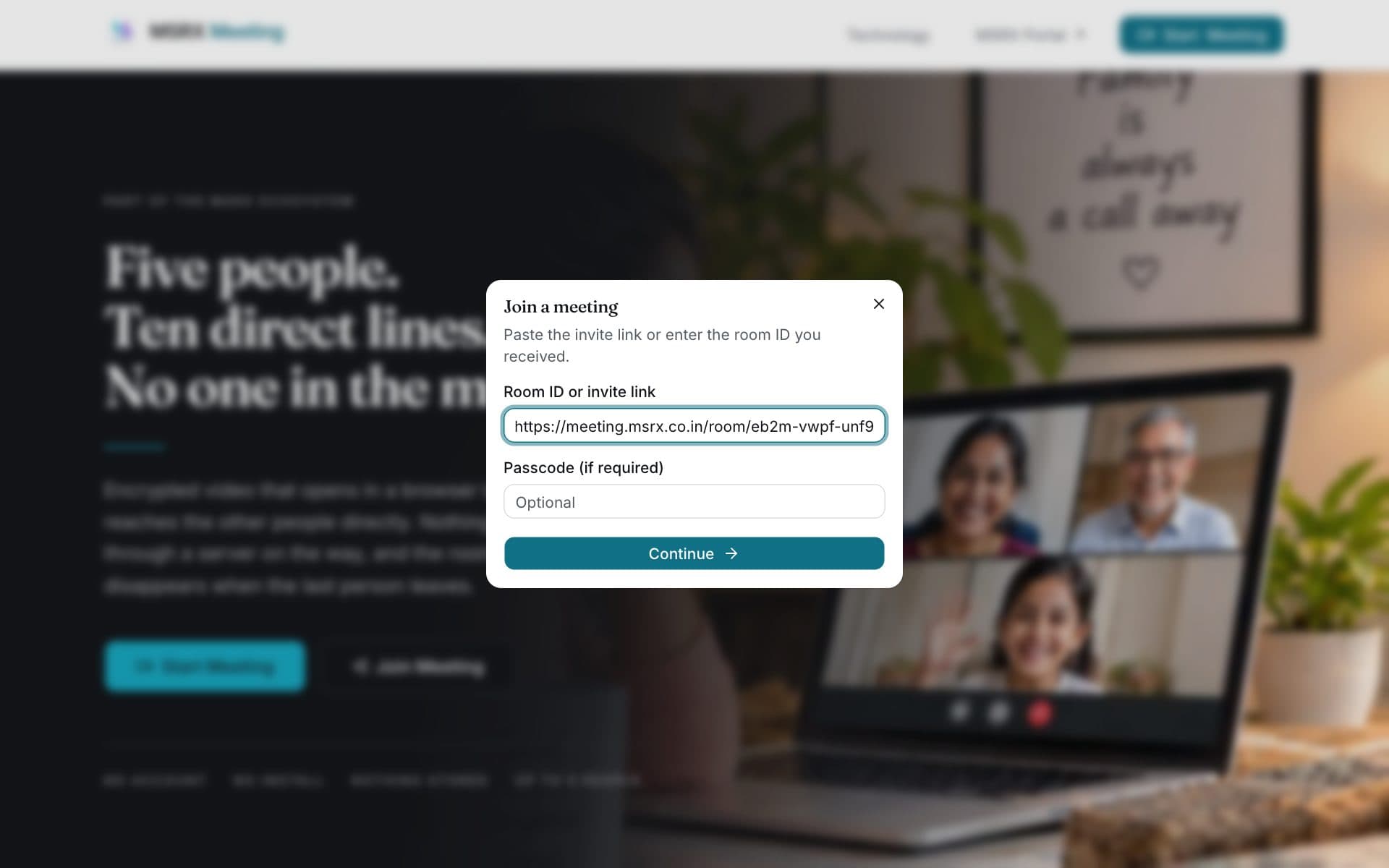
The simplest way is to open the link you were sent. If you only have the meeting code — three groups of four letters and numbers, like kxq4-m2tb-7raf — go to the home page, click Join Meeting and paste the code or link. Add the passcode if you were given one.
You then see the same camera check as in step 2. Enter your name and click Join meeting.
5. Find your way around the room
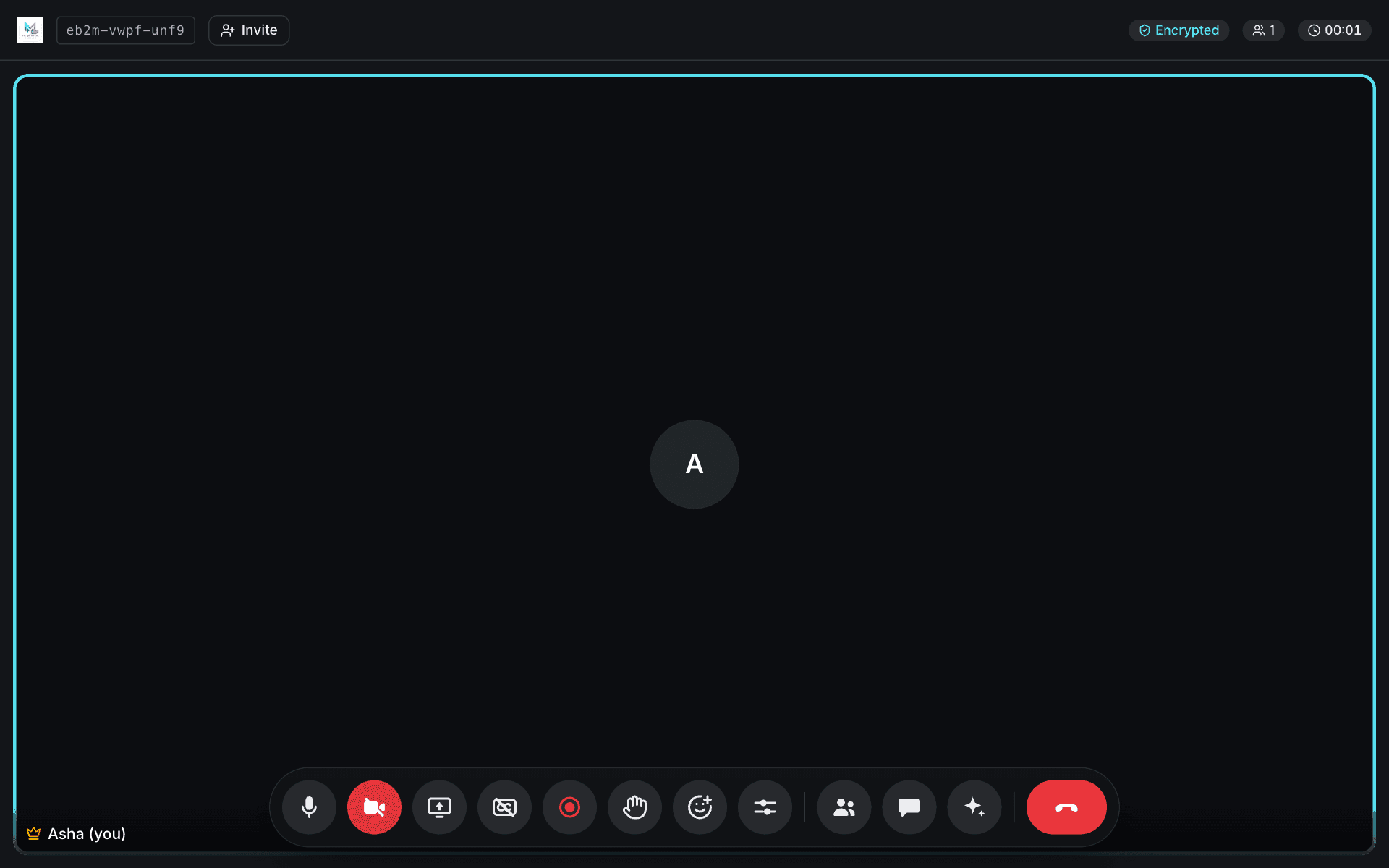
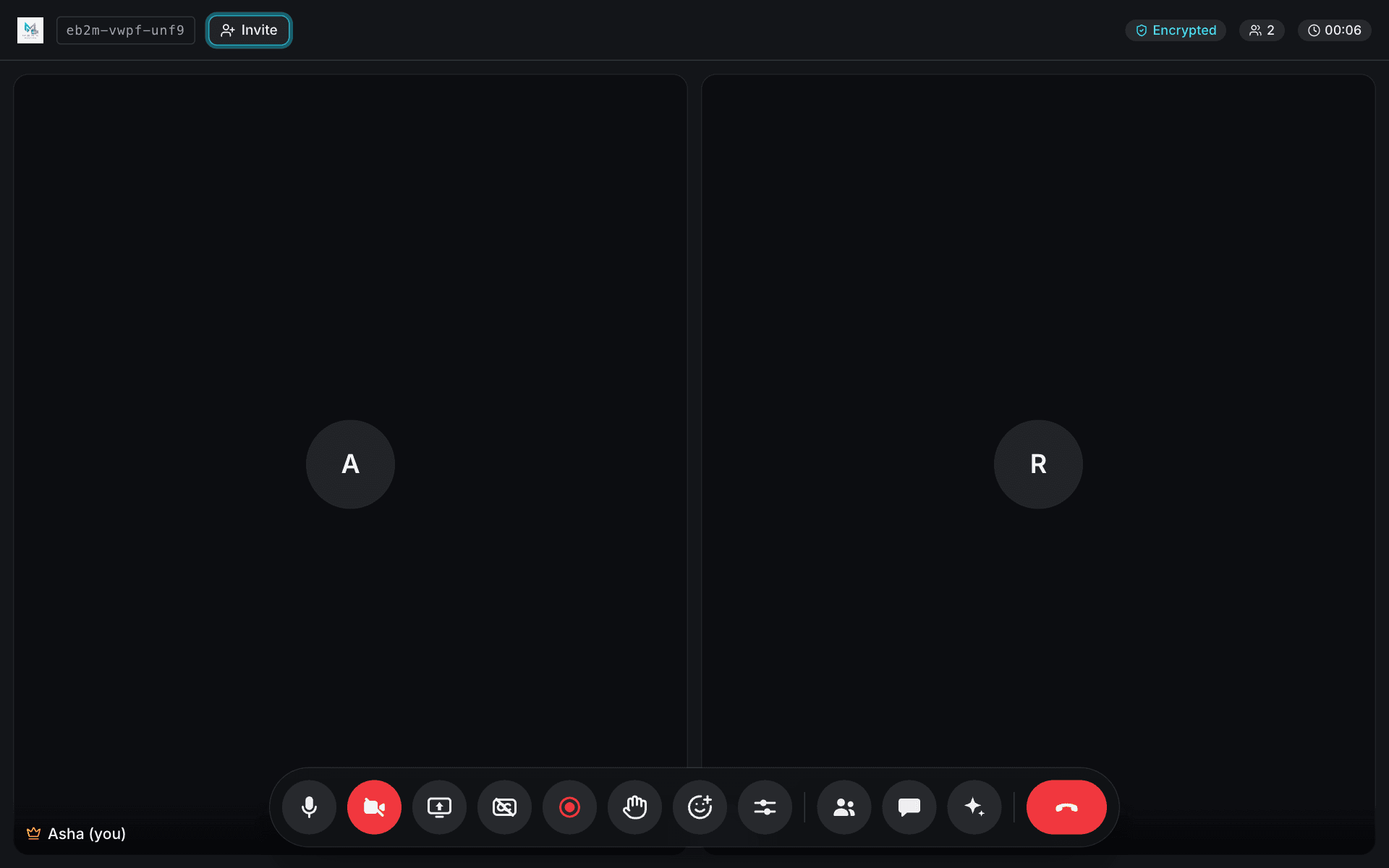
Everyone in the meeting has a tile. When someone's camera is off, their tile shows their initial. A coloured ring appears around whoever is talking.
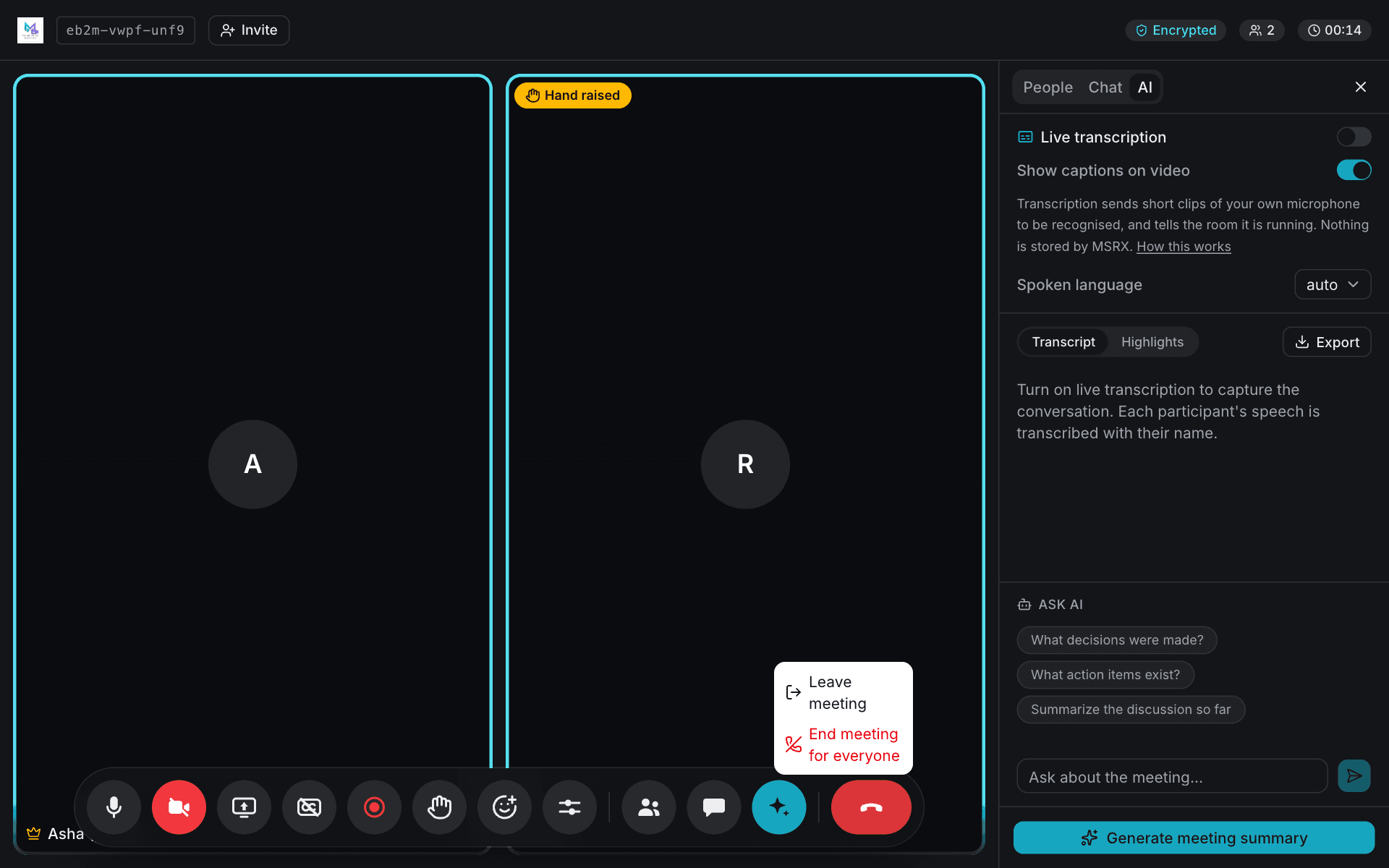
Across the top: the meeting code and Invite button on the left; on the right, the Encrypted badge, how many people are in the room, and how long the meeting has been running.
6. The control bar
The buttons along the bottom, from left to right. The bar hides itself when you are not moving the mouse; move it, or tap the screen, to bring it back. Hover over any button to see what it does.
- Microphone — mute or unmute yourself. Shortcut: M.
- Camera — turn your video off or on. Shortcut: V.
- Share screen — show your whole screen, one window or one browser tab. Everyone sees what you share in the large spotlight.
- Live captions — subtitles of what you say, shown on your tile for everyone. Shortcut: C.
- Record — save the meeting to your own device. See step 9.
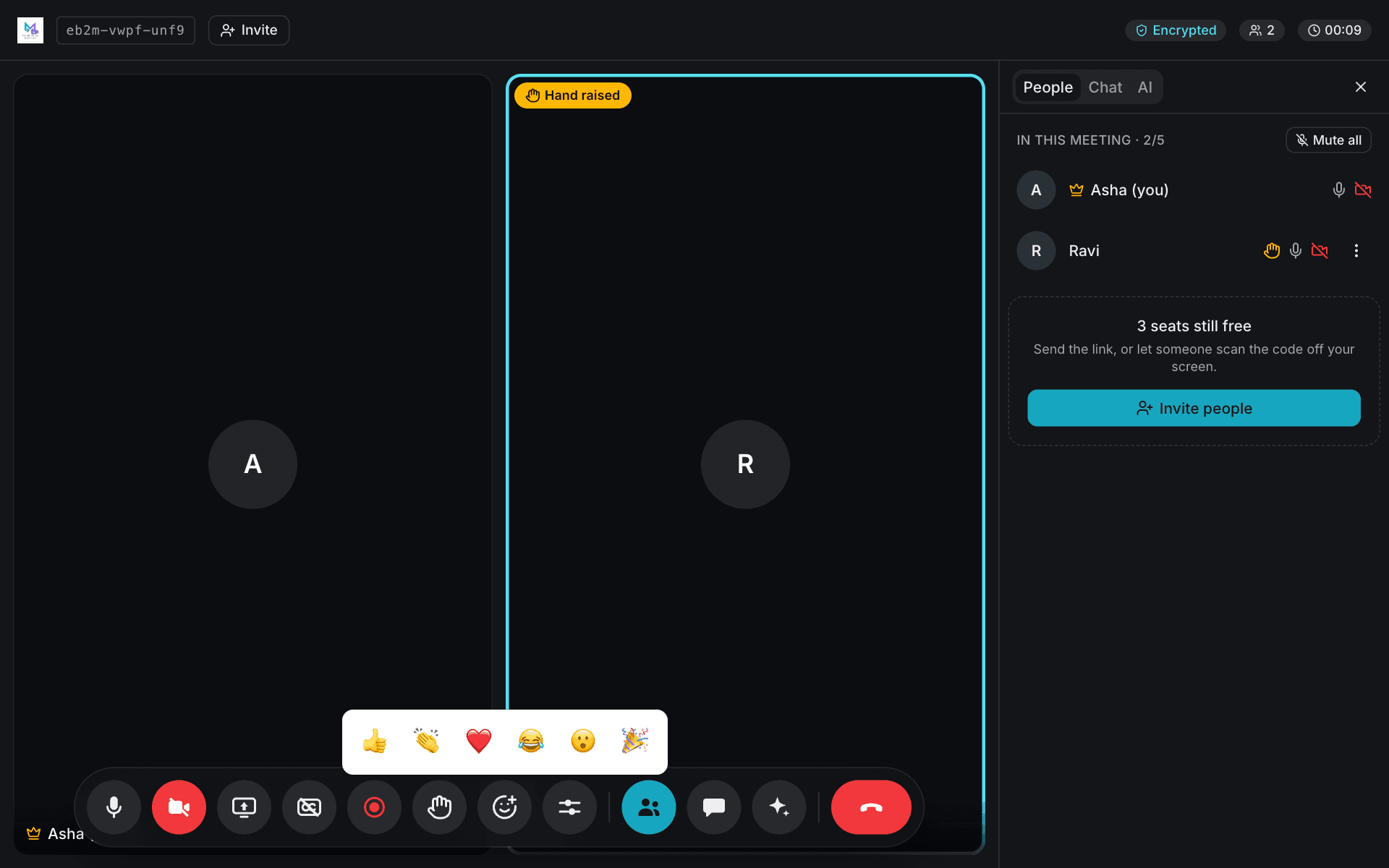
- Raise hand — puts a yellow Hand raised badge on your tile so you can speak without interrupting. Shortcut: H.
- Reactions — send a 👍 👏 ❤️ 😂 😮 or 🎉 that floats over your tile for a moment. Shortcuts: 1 to 6.
- Settings — video quality and microphone processing. See step 10.
- People, Chat and AI — open the side panel on that tab.
- Red button — leave the meeting (or, if you started it, end it for everyone).

7. Chat and the list of people
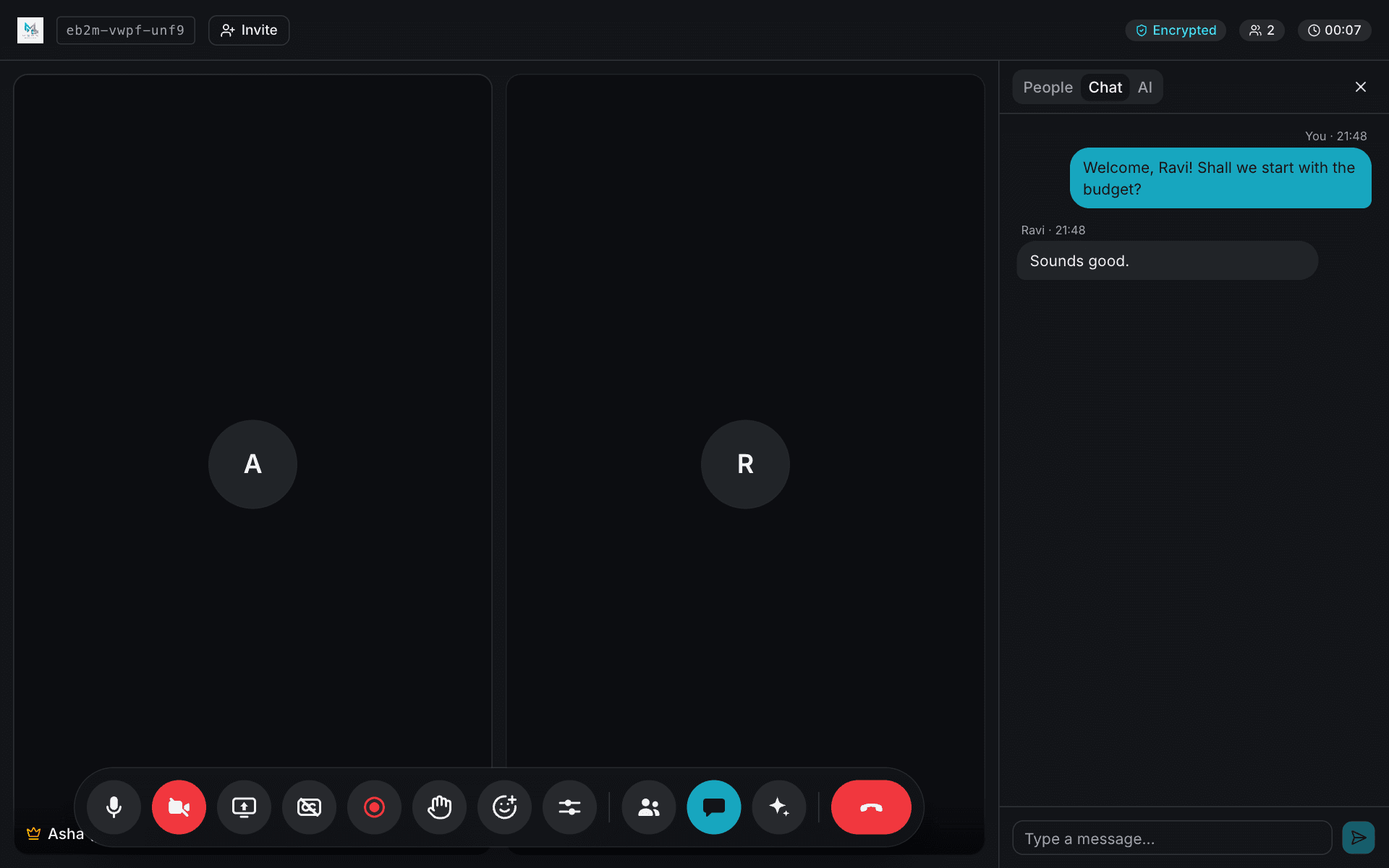
Chat sends messages to everyone in the meeting. They travel directly between your browsers and disappear when the meeting ends — nothing is saved anywhere.
People shows who is in the room, whether their microphone and camera are on, and whose hand is raised. The crown marks the person who started the meeting.
8. If you started the meeting
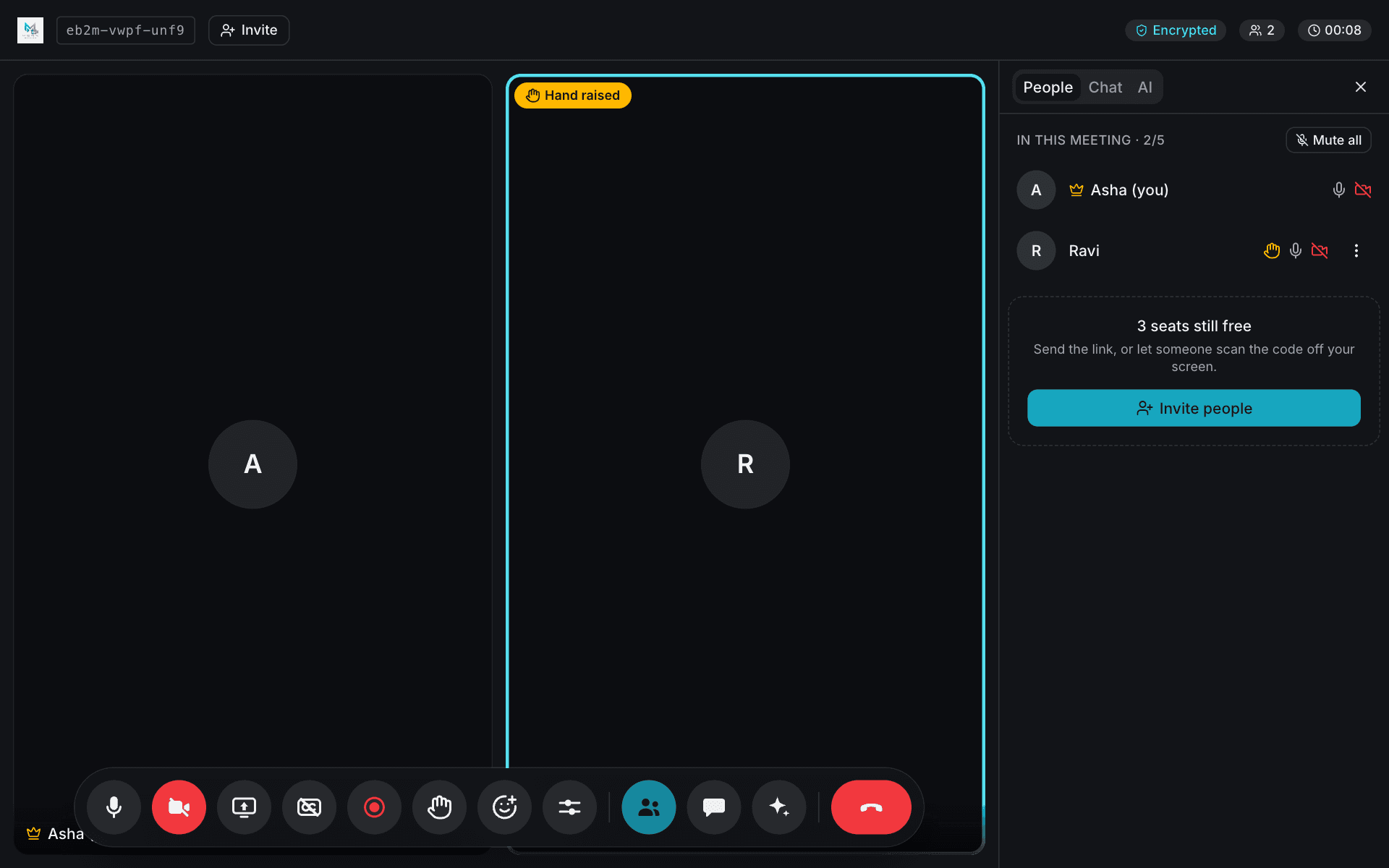
The person who starts a meeting is its host and has a few extra controls in the People tab:
- Mute all — mutes everyone else at once. People can unmute themselves when they need to speak.
- The ⋮ menu next to a name — mute that person, or remove them from the meeting.
- In the record menu, Allow participants to record — untick it to stop everyone else from recording.
- The red button offers End meeting for everyone. If you only leave, the meeting carries on for the others, but nobody new can join.
9. Record the meeting
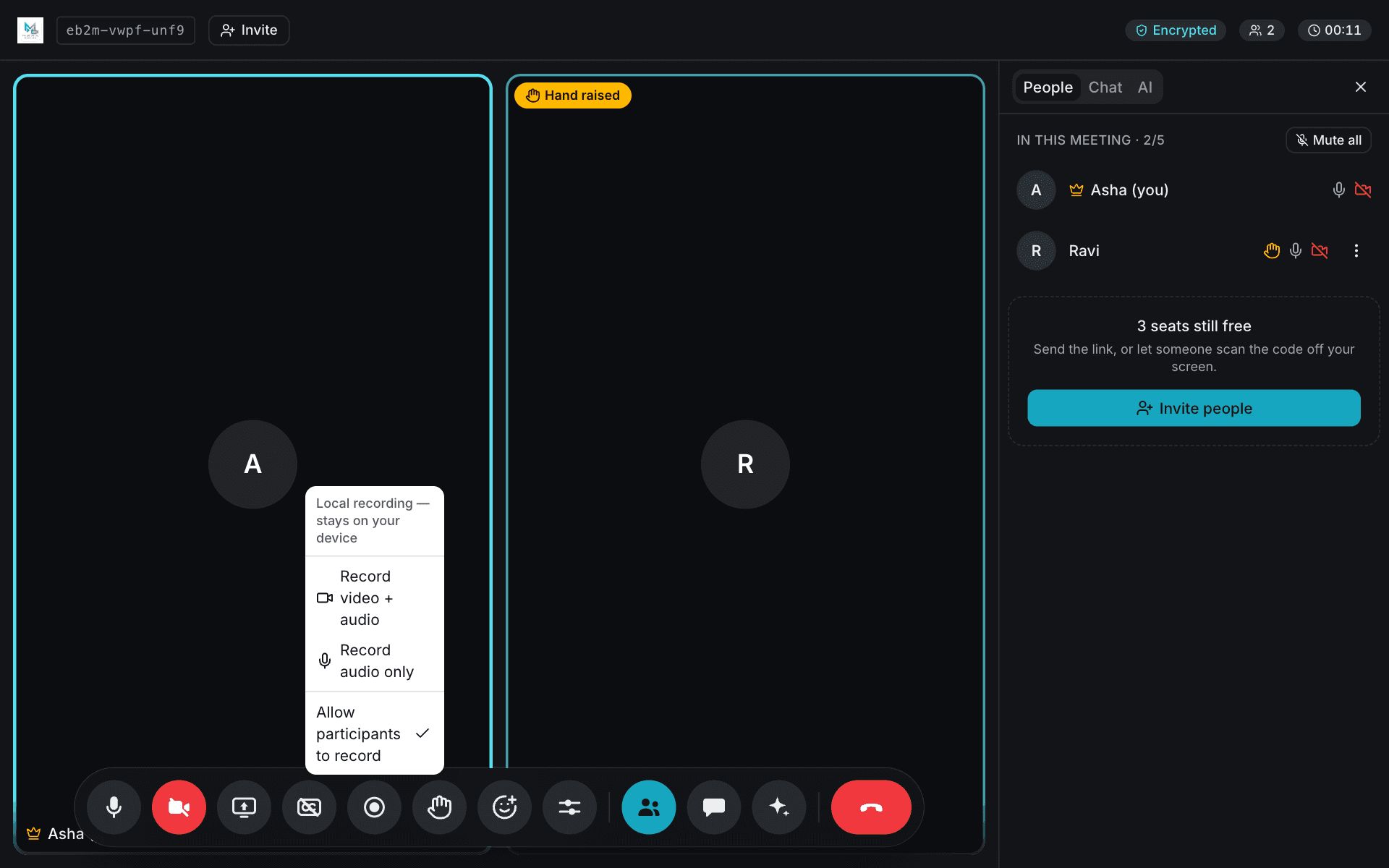
Click the red record button and choose Record video + audio or Record audio only. When you stop, the file downloads straight to your computer or phone. It is never uploaded.
Everyone in the room is told when someone starts recording, and a banner naming who is recording stays up until they stop. Depending on where you and the others are, the law may require everyone's consent before you record — please ask first.
10. Video quality and sound
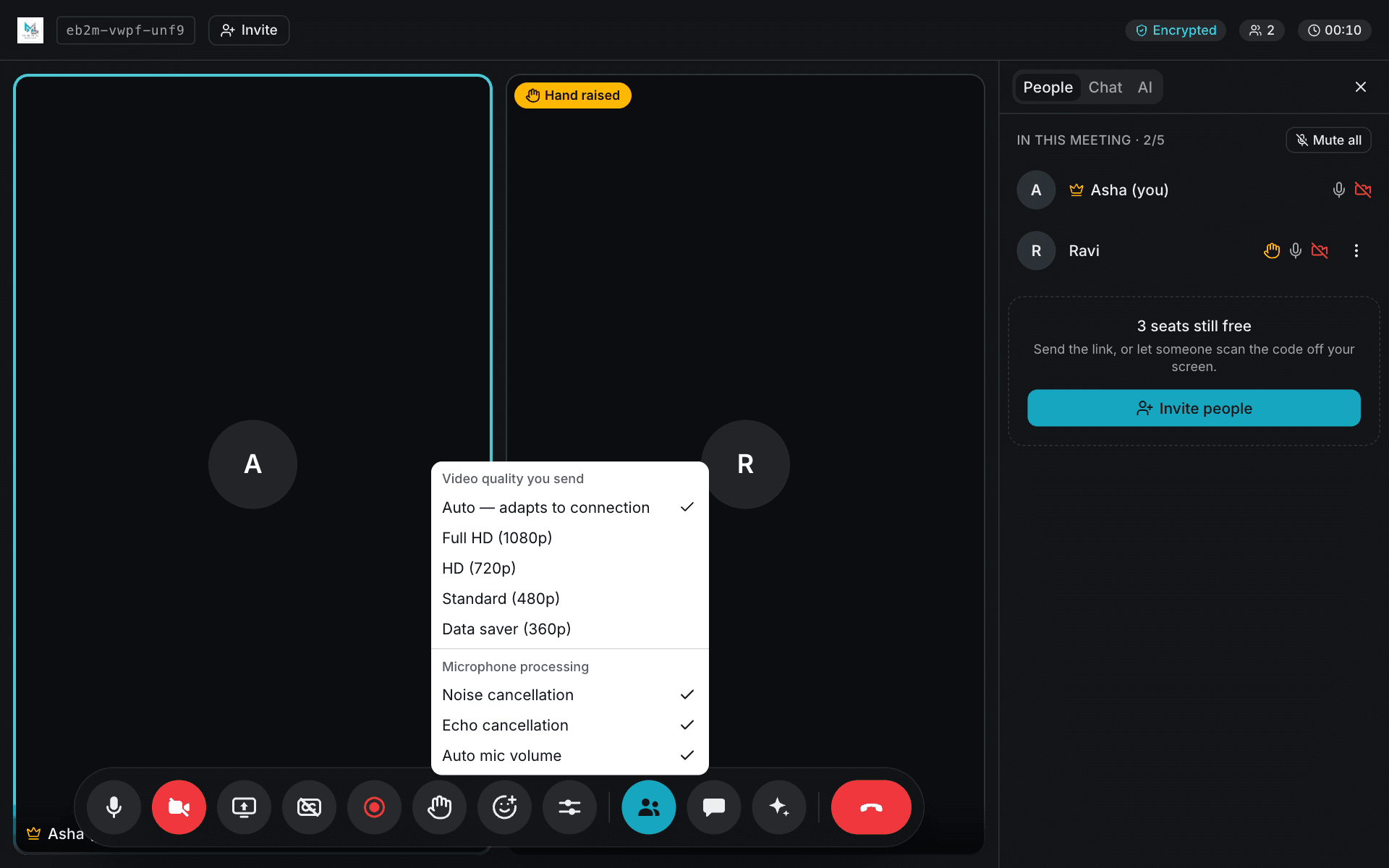
The settings button (the sliders) lets you choose the video quality you send, from Full HD down to Data saver. Auto is best for most people: it adjusts to your connection by itself. Choose Data saver if you are on mobile data or the picture keeps freezing.
Noise cancellation, echo cancellation and automatic microphone volume are on by default. Leave them on unless you are playing music into the call.
11. Transcript, questions and summary
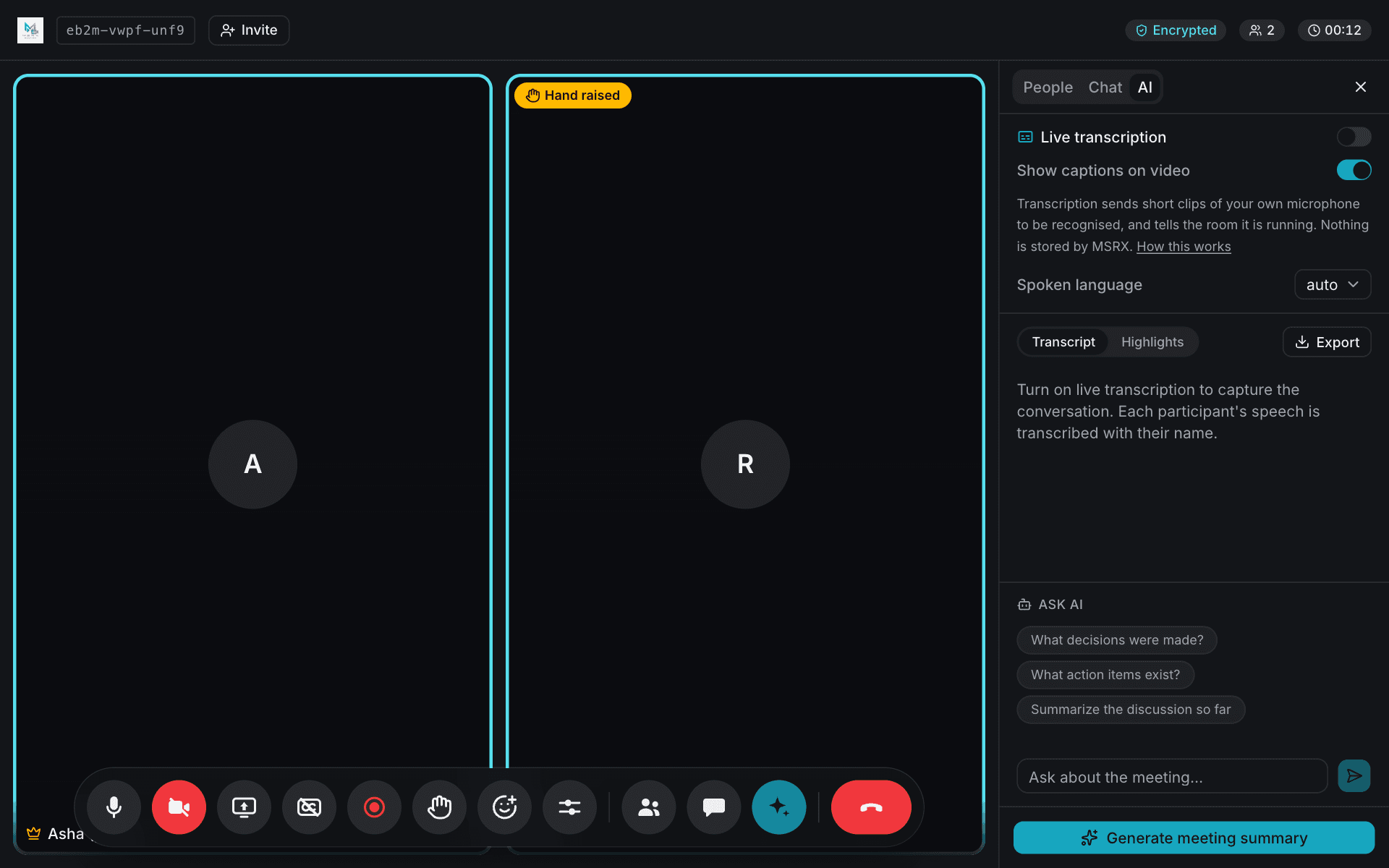
Open the AI tab. The AI features are all off until you switch them on, and everyone in the room is told when you do.
- Live transcription — writes down what is said, with each speaker's name. Each person's own browser transcribes only their own microphone, so turn it on for everyone who should appear in the transcript. Set Spoken language if auto-detect guesses wrong.
- Highlights — next to Transcript, picks out the decisions, action items and open questions, in the speaker's own words.
- Ask AI — type a question such as “What did we decide about the budget?”, or tap one of the suggestions.
- Generate meeting summary — a short write-up with key decisions, action items, risks and next steps.
- Export — download the transcript as a text file, or the summary as Markdown or PDF.
12. Leave or end the meeting
Click the red button. Guests simply leave. The host can choose Leave meeting, which lets the others carry on, or End meeting for everyone.
A meeting also ends by itself after 5 hours; you get a warning well before then. Once everyone has left, nothing about the meeting is kept — no recording, chat or transcript stays behind unless someone saved it to their own device.

On a phone
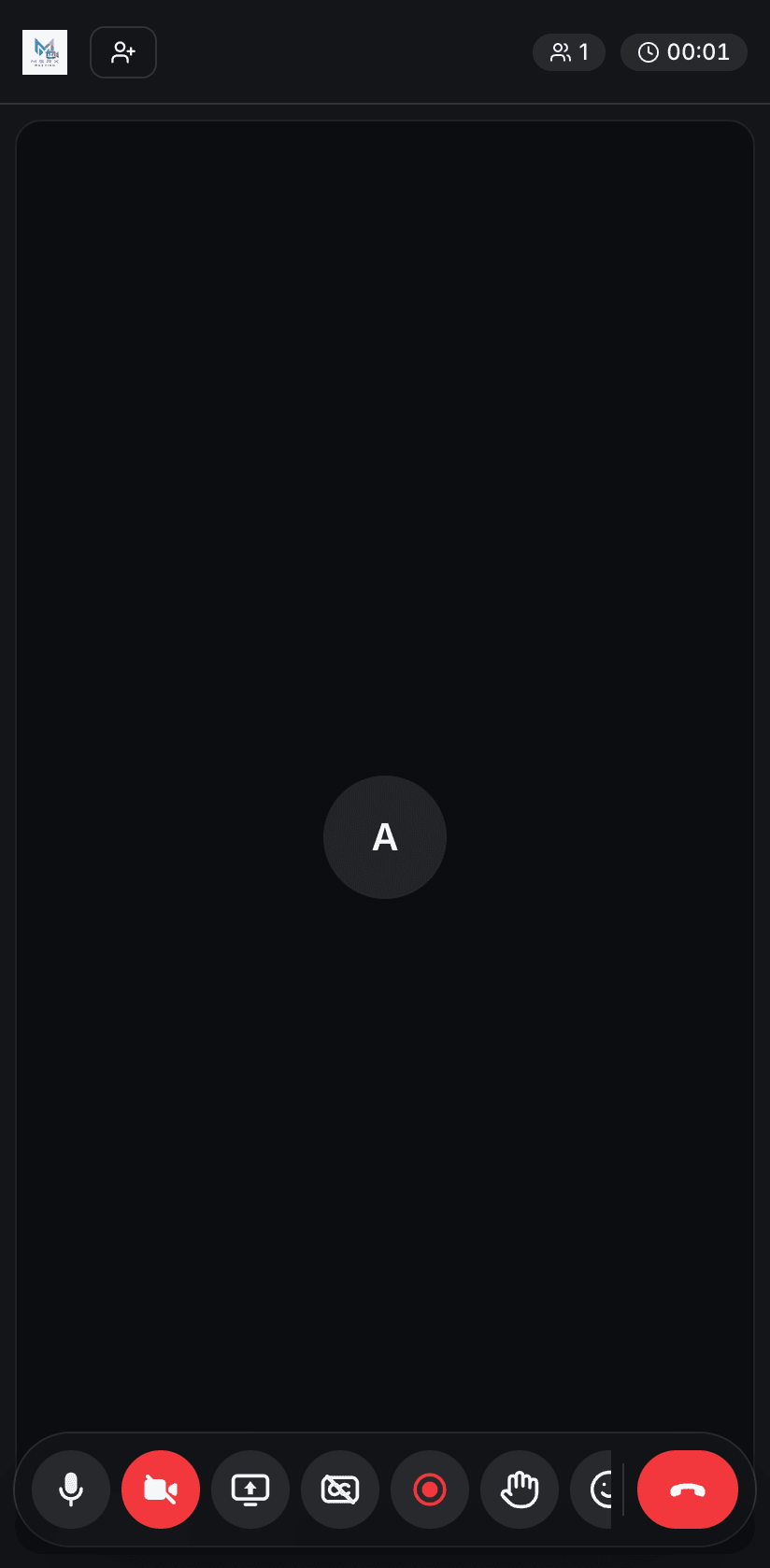
Everything works the same way in your phone's browser. Open the link, allow the camera and microphone, enter your name and tap Join meeting.
The control bar has more buttons than fit across a phone screen: swipe it left to reach the rest. The red leave button always stays in place.
If something is not working
- Others cannot hear or see you — check that the microphone and camera buttons are not red, and that your browser has permission (the camera icon in the address bar).
- “The passcode is incorrect” — ask the host to send it again. Capital and small letters count.
- “This meeting is full” — the room already has 5 people. Someone has to leave first.
- Waiting for the host — a meeting only opens once the person who created it has joined. Keep the page open; it connects by itself.
- Video freezes or sound breaks up — choose a lower quality in settings, or turn your camera off. Some office and school networks block direct connections; try another network or your phone's mobile data.
- Captions or transcription do nothing — make sure you are unmuted, and that you have switched them on yourself: each person's own device captures only their own voice.
Want to know what happens behind the screen? The technology page explains how it works, and the privacy page says exactly what is shared with whom.